
Turbulent Sky
Tech Tips, Tricks and Solutions

There are a lot of hidden preferences in Firefox that are available by entering about:config in the browser’s address bar and pressing the Enter or Return key. Here are some tweaks that I find particularly helpful.

To change a preference in the list, double-click on it. To filter the list, type any part of the preference name in the Filter box.

  1. browser.backspace_action
    By default on Windows and Mac OS X, hitting the backspace key causes Firefox to go back one page in the browser’s history. Changing this setting’s value to anything greater than 1 (Firefox on Linux defaults to a value of 2) will disable this behavior to prevent accidentally changing pages while typing in a form or Flash program.
  2. layout.spellcheckDefault
    The default value of 1 enables spell checking in text areas. To have Firefox show incorrect spelling in text input fields of forms as well, change this value to 2.

Changes to these settings take effect immediately. The spell check one may require that you reload a page that was open before the setting was changed for it to take effect.
Post a comment

Related posts:

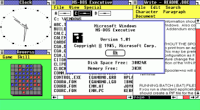
Not many people have seen Windows 1.0. I believe the first version I used was 2.0 or 2.1. Well, here’s some nostalgic videos from the early days of Windows.

Windows 1.0 Commercial (Check out Steve Ballmer! A little too much coffee?)

Windows 1.0 Running on IBM XT (clickety-clack)

Windows 1.0 Features Slideshow

David Letterman’s History of Microsoft

More Windows 1.0 Goodies

And last, but not least, buy your own copy of Microsoft Windows 1.0 on eBay! At the time of this post, there was one copy available with six bids and a high bid of $22.51.

Post a comment

I’ve been using Excel since version 1.0 so I’m pretty proficient, but there’s so much functionality that’s been added over the years that it’s pretty hard to utilize it all. For example, here are two helpful tricks that I’ve never heard of before:

  1. Pressing Alt and the equals sign at the end or bottom of a row or column of numbers will insert a sum formula for you.
  2. Holding down the Shift key and then clicking on the File menu will reveal a Close All item to quickly close worksheets.

For some more useful tips, have a gander at Getting the Most Out of MS Excel at Web Worker Daily.

Post a comment

As you probably know, Firefox supports the creation of profiles so that different people can have their own browser configuration (buttons, add-ons, font size, etc.). If you’re not familiar with this feature, see How To Manage Profiles at the Firefox help site. A feature that’s more obscure is that you can actually run more than one profile at the same time.

Why would you want to run profiles simultaneously? I use the feature primarily so that I can check that pages look correct on a clean Firefox profile as well as on my heavily souped up one with lots of add-ons. You might also find it useful to have profiles with different add-ons for different tasks and then start one or more as needed.

Normally, if you start Firefox when a copy is already running, it’ll just start another window using the current profile. To start a completely separate instance of Firefox, add the -no-remote option. In Windows, you can either do this by selecting Run from the Start menu and typing in the entire command, or add the option to the shortcut that you use to start Firefox. On Linux, just add the option to the command line or if you’re using a GUI (e.g. Gnome, KDE, Xfce) adjust the command assigned to the desktop or menu icon that you use to start Firefox.

For example,

firefox -p Profile_Name -no-remote

will start a new instance of Firefox with the profile named “Profile_Name”. If, on the other hand, you want to choose the desired profile from the Profile Manager window, use

firefox -profilemanager -no-remote

Now you can start as many different profiles as you like. Have a novel way to make use of profiles? Leave a comment.

Post a comment

Related posts:

Google AdSense for Content and AdSense for Search allow you to create a custom color palette so that the ads can blend or contrast with your page’s color scheme. However, for some reason, the custom color palette can’t be selected for Referrals ads. So, I added the color definitions to the ad code manually.

  1. After creating the Referrals ad, copy and paste the ad code as you normally would. For example, your code might look like the following
    <script type="text/javascript"><!--google_ad_client = "pub-xxxxxxxxxxxxx";google_ad_width = 250;google_ad_height = 250;google_ad_format = "250x250_as";google_cpa_choice = "CAEadPE0aicm8BvfUaU";//--></script><script type="text/javascript"src="http://pagead2.googlesyndication.com/pagead/show_ads.js"></script>
  2. Next, add the color codes in the section where all the “google_ad_” variables are. Here’s the same example with the colors added:
    <script type="text/javascript"><!--google_ad_client = "pub-xxxxxxxxxxxxx";google_ad_width = 250;google_ad_height = 250;google_ad_format = "250x250_as";google_cpa_choice = "CAEadPE0aicm8BvfUaU";
    
    /*** Custom colors ***/google_color_border = "FFFFFF";google_color_bg = "FFFFFF";google_color_link = "336699";google_color_text = "333333";google_color_url = "336699";//--></script><script type="text/javascript"src="http://pagead2.googlesyndication.com/pagead/show_ads.js"></script>
  3. Edit the google_color_border (ad border), google_color_bg (background), google_color_link (link/ad title), google_color_text (ad description) and google_color_url (URL text below description) values to the desired colors.

Note that these color codes exist for Content and Search ads. I don’t know why the Referrals ad generator left them out. A person posted on the AdSense Help group that a few months ago, he/she was able to select a custom palette from the generator and asked why it no longer worked. There was no answer yet, so I did this workaround to make the Content and Referrals ads look the same.

Post a comment

Earlier Posts »

Creative Commons License This work by Peter Ridge is licensed under a Creative Commons Attribution-Noncommercial-No Derivative Works 3.0 License.
Turbulent Sky Theme by Peter Ridge, based on BlueMod Theme by FrederikM.de