Turbulent Sky
Tech Tips, Tricks and Solutions

by

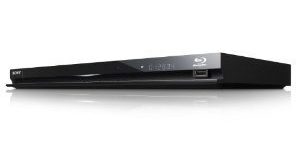
A lot of people are having problems connecting the Sony BDP-BX57 and BDP-S570 Blu-ray disc players to the Internet via Wi-Fi with encryption enabled (WEP, WPA, WPA2, etc.). I ran into this as well, but eventually got it working with a pretty easy fix. So, don’t return yours to Costco or BestBuy just yet.

To make sure your connection problem isn’t a configuration error, be sure that your SSID in the player’s wireless network configuration matches the one in your wireless router (properly entered upper- and lowercase letters, if any). It’s a good idea to turn off all wireless encryption to verify that the Blu-ray player connects via Wi-Fi without it and that video or music streams properly over the network.

Finally, verify that your Blu-ray player’s firmware is up to date. Some earlier network problems were the result of firmware bugs and you want to make sure that you’re not suffering from one of those problems. The current version, at the time of this post, is M04.R.735. To find the firmware version in your disc player, do the following:

  1. From the player’s main menu, scroll all the way to the left to Setup.
  2. Select System Settings, then System Information at the bottom.
  3. The firmware version appears near the top of the screen.

If your firmware is older than M04.R.735, update it before continuing on. I’ll wait right here.

All set to continue? Good. If you updated the firmware, double check that unencrypted wireless is still working. Now, re-enable encryption in the wireless router, set the corresponding encryption mode in the player (WEP, WPA, WPA2, etc.) and enter the correct encryption key. At this point, if you’re encountering the problem, having enabled encryption will result in a good wireless connection, but no Internet access. The player’s green Wi-Fi LED on the front of the device will be on, but the IP address will start with 169 instead of the usual 172 or 192.

It seems that firmware changes can introduce problems with the network configuration information or other related data in the system. As a result, encryption over the wireless doesn’t work properly. To fix this, do the following:

  1. In the player’s menu, scroll all the way to the left to Setup.
  2. Scroll to the bottom and select Resetting.
  3. Select Reset to Factory Default Settings. Don’t worry, it won’t reset just yet.
  4. Select Network Settings to wipe out all the network configuration data.
  5. Re-enter the wireless network settings that you did before. (I know, it’s a pain.)

That’s it. It should connect to the wireless and to the Internet now. Wiping the old network data and re-entering it removes whatever was causing the wireless not to properly encrypt the network communication. If, for some reason, resetting just the Network Settings isn’t enough, you can opt to reset everything. It’s the last reset item in the menu.

Did it work for you? Do you have a different model Sony Blu-ray player or even a different brand with a similar problem and found a fix? Post your experiences in the comments.

Post a comment

Related posts:

by

Do you have a Samsung Epic 4G or other Android phone? Do you have to recharge your battery daily or more than once a day even when you’re hardly doing anything with it? That’s not normal. My Samsung Epic, when lightly used, only needs to be recharged every three to four days.

“Impossible!” you say. “These are powerful phones and they use up the battery faster.” That may be true if you’re talking on the phone, watching videos and playing Angry Birds on it all day long. However, many people are having to frequently recharge their phones even under light to no usage, which should not be happening.

“You must use task killers, Juice Defender, a special kernel or some extreme tools to get that kind of battery life.” Actually, I’ve tried some, but abandoned such measures. They’re not necessary. There are many well-known ways to conserve power such as turning off services you don’t need, checking for mail less often, dimming the screen, etc. These are certainly important and should be practiced. But, there’s more.

Despite these normal power conservation techniques, when the Samsung Epic starts to drain the battery, it does so at an alarming rate. Here’s a log of the battery level at approximately ten-minute intervals that I kept when mine recently started to suck the battery dry:

62% @ 11:37 pm
61% @ 11:45 pm
59% @ 11:58 pm
57% @ 12:10 pm
56% @ 12:17 pm
55% @ 12:27 pm
52% @ 12:37 pm
51% @ 12:47 pm
50% @ 12:57 pm
49% @ 1:07 am
48% @ 1:10 am
47% @ 1:20 am
45% @ 1:36 am
44% @ 1:50 am
43% @ 2:05 am

It’s draining the battery at a rate of about 10% per hour. This is with the phone’s screen, GPS, 3G/4G data, Wi-Fi, automatic updates, Bluetooth and sound turned off. No applications were running. In fact, during this period, I had more things turned off than I usually do.

It’s been documented at the Sprint Community forum and various blogs that the Samsung Epic can go into a mode where it will continuously search for the cellular network. I have encountered this and the usual fix is to turn on airplane mode for a few seconds and then turn it off again to reset the radio. Unfortunately, I found that this fix doesn’t always work. Even shutting down the phone completely and then turning airplane mode on and off doesn’t help.

In the two cases thus far, when the simple fix for this problem didn’t work, two things did. The first was turning on airplane mode overnight. The second was turning the phone completely off overnight. Here’s a short log of battery life after the overnight fix for the sudden battery consumption I logged above:

41% @ 8:33 am
41% @ 8:44 am
41% @ 8:49 am
41% @ 9:00 am
40% @ 9:01 am
40% @ 9:10 am
40% @ 9:20 am
40% @ 9:33 am
39% @ 9:41 am

As you can see, now the phone is only consuming 1-2% per hour, rather than 1% every 10 minutes. The screen was off, but 3D data was enabled and some services that I turned off during the excessive battery usage were running again since the phone had freshly booted. So, despite having more things turned on, the phone is back to normal and will last significantly longer than the 8-10 hours that many owners of the Samsung Epic are reporting online as “normal”.

Does this fix really require turning the phone off (or putting it into airplane mode) all night? At this time, I’m not sure how long it needs to stay in the off/airplane state. It definitely needs more than a few minutes, because I’ve tried that and it’s not enough. So, it’s somewhere between a few minutes and 6.5 hours.

Have you tried this fix? How long did you have to keep your phone off or in airplane mode to get it to behave? Post your experience in the comments.

Post a comment

by

I recently ran into a situation where a Linksys WRT-54G wasn’t able to get an IP address when connected to an Ambit/uBee U10C018 cable modem. This issue may also apply to other routers when used with the U10C018 cable modem.

When a PC is connected directly to the modem, everything works fine and the Internet can be reached normally. When a router is placed inbetween, then there is no longer any access to the Internet. Viewing the status information in the router shows that it is unable to acquire an IP address, even though the router is set to use automatic configuration via DHCP, the same as the PC.

Apparently, the U10C018 cable modem is aware of the MAC address of various routers. In order to get the router to work with the modem, use the MAC cloning feature of the router. The location of this option will depend on your particular router brand and model. When you find it, turn it on. Then, set the desired MAC address.

On the Linksys router, the MAC address cloning page has a button to copy the MAC from the PC that’s currently connected to the administration interface. If your router has this feature, use it to set the router to the same MAC address as your computer. If your router does not have this feature, then you’ll have to get your MAC from the network driver or the network card.

Once you have a non-router MAC entered into the MAC cloning setting, save and restart the router.

Have you run into this issue? If so, post your router model and steps to configure MAC cloning for it in the comments.

Post a comment

by

Many reviews of the Samsung Epic 4G (SPH-D700) Android phone fault it for the backlighting of the four shortcut buttons at the bottom of the phone. When the keyboard backlight times out (six seconds, by default), those touch-sensitive shortcut buttons are no longer visible at all. The area becomes completely black. As a result, you either have to memorize which location is Menu, Home, Back and Search, or increase the backlight’s timeout, which uses more battery power.

Well, there’s actually another solution. When the shortcut keys are not visible, simply press the camera shutter button, located at the bottom-right of the phone when held in portrait orientation. Et voila! The keyboard backlight turns on. Since the camera button is raised, it’s easy to find, even in the dark.

Have any other tips for the Epic 4G? Share them in the comments.

Post a comment

by

For quite some time, I’ve been getting an error whenever I tried to archive an email message on an IMAP server for the first time during a Thunderbird session (i.e., archiving the first email after starting Thunderbird). All subsequent archiving operations would be error-free until I restarted Thunderbird. (Note: I’m using Thunderbird 3)

After pressing Ctrl+A to archive an email message, Thunderbird’s Activity Manager would contain the following error:

“The current command did not succeed. The mail server for account Account Name: Can’t create mailbox node /path/to/mail/Archive/: File exists.”

Despite much searching, I wasn’t able to find anyone else who encountered this problem when archiving an email message. So, I worked around the problem by just remembering that the first message I archive had to be archived twice, because the first attempt would fail and the message wouldn’t leave the inbox.

Today, I discovered the solution. After setting up a new IMAP account, I didn’t receive any error archiving email messages from this new inbox. However, the Archive folder had a subfolder named 2010. Aha! So, Thunderbird must be trying to create a similar folder in my other account and failing. Well, I don’t need these annual subfolders, so turning off the behavior should take care of the problem.

Fortunately, it is possible to disable the annual folders created by Thunderbird’s archiving feature:

  1. Click on Options in the Tools menu
  2. Click on the Advanced tab icon
  3. Click the Config Editor button (if you receive a facetious warning about voiding your warranty, just accept it)
  4. In the Filter text box, enter granularity
  5. Double-click the preference mail.server.default.archive_granularity and enter the value 0

With the granularity set to zero, Thunderbird won’t create annual subfolders in the archive folder. This finally got rid of the error because the problematic server didn’t allow a mailbox folder to have subfolders.

Post a comment

« Later Posts – Earlier Posts »

Creative Commons License This work by Peter Ridge is licensed under a Creative Commons Attribution-Noncommercial-No Derivative Works 3.0 License.
Turbulent Sky Theme by Peter Ridge, based on BlueMod Theme by FrederikM.de